

User Guide
Connect an Obsidian vault with Bridge Mode
A step-by-step walkthrough for opening an existing or creating a new Obsidian vault in Moonstone with Bridge Mode.
4 min readBefore you start
Bridge Mode lets Moonstone edit the Markdown files that already live in your cloud drive in the same folder your Obsidian vault syncs to.
Moonstone only show your notes. The app never reads or process your notes, or stores the notes somewhere else. We respect the privacy of your data at the highest degree.
You will need a Pro plan, and your Obsidian vault already syncing to Google Drive, OneDrive, or Dropbox.
Choose your provider
Moonstone use a vault on Moonstone Cloud automatically. Let's switch the storage provider.
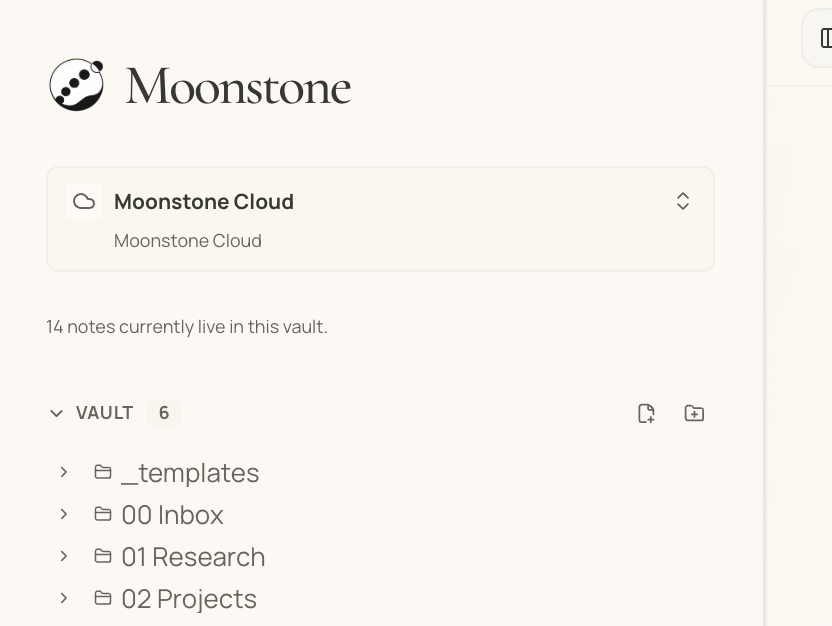
- Create a Moonstone account and sign in.
- Moonstone use a vault on Moonstone Cloud by default. Switch the storage provider by clicking on the vault menu under the Moonstone logo on the left sidebar.
- Choose "Add new vault." and choose provider of your choice
- Sign in to that provider and approve the access Moonstone asks for.
- Choose the root folder for your vault and confirm.
- (Note for Google Drive) We are working on verification toward Google Drive. Hence, you might see some warning about security. We ask you to trust us and proceed at this step.
Keep it in sync
Once loaded, edit your notes in Moonstone as usual; save will writes the changes straight to your drive.
Moonstone will pull new changes that you make elsewhere automatically, with some delay. To force an update, simply disconnect current vault and connect again.